
ASUS VY249HGR Eye Care Gaming Monitor – 24 inch FHD (1920x1080), IPS, 120Hz OC, SmoothMotion, 1ms MPRT, Adaptive Sync, Eye Care Plus, Blue Light Filter, Flicker Free, antibacterial treatment(Disclaimer)


Offer

£ 68.96
free delivery | 1-2 Days
to shop
Product specifications
| Energy efficiency class | C |
|---|---|
| Energy efficiency scale | A to G |
| Device type | Monitor |
| Screen diagonal | 24 inch |
| Screen diagonal | 60.5 cm |
| Horizontal resolution | 1920 px |
| Vertical resolution | 1080 px |
| Panel technology | LED-LCD |
| Refresh rate | 60 Hz |
| Energy efficiency class (SDR) | C |
| Power consumption (SDR) | 11.6 W |
| Spare parts availability | 7 years |
| Guaranteed software updates | 8 years |
EPREL model: ASUS VY249HGR-W
Product description
- ASUS VY249HGR Eye Care Gaming monitor is designed with your health in mind.
- It features IPS FHD panel that delivers exceptional visuals.
- Ideal for eLearning, work or entertainment, the combination of a 120 Hz(OC)* refresh rate and Adaptive Sync support ensures you’ll enjoy consistently smooth visuals with any content.
- It features ASUS Eye Care Plus technology to ensure everyday comfortable viewing Experience rich, true-to-life visuals with the 23.8-inch Full HD (1920 x 1080) IPS panel, offering 178° wide viewing angles and support for 16.7 million colours.
- Enjoy sharp images, vivid colours, and stunning clarity, whether you're editing photos, streaming content, or working on documents With a 120Hz (OC) refresh rate and 1ms MPRT response time, you'll benefit from fluid animation and reduced motion blur across casual gaming, video playback, and daily tasks.
- Adaptive Sync technology minimises screen tearing for a more immersive and stutter-free experience When it comes to design, ASUS always has customers in mind – ASUS exclusive GamePlus hotkey with Crosshair, Timer, FPS counter and Display Alignment functions to give you in-game enhancements that help you get more out of your game.
- Co-developed with input from professional gamers, these tools help improve aim, awareness, and overall performance How to Overclock your monitor to 120hz: power on the monitor and ensure the HDMI/ Display Port cable is plugged into your Console/ PC Graphics Card; click the monitor’s physical toggle switch for the On Screen Display menu to appear; navigate to ‘Gaming’ > ‘Overclocking’ and enable OC mode; lastly type in 'Advanced Display' into your windows search bar to open the Window’s menu and set the refresh rate
Other monitors offers
15% discount

HP 21.4 5 inch Inch FHD Monitor | Full HD VA LCD Display |75hz Refresh Rate |200 Nits Brightness |3000:1 Contrast Ratio | AMD FreeSync Technology |Adjustable Tilt |1x HDMI 1.4, 1x VGA | Black |V22v G5
IN FULL VIEW: Enjoy how your projects or assignments look on this monitor with excellent, front-of-screen views.
£ 94.00
£ 109.99
To the offer
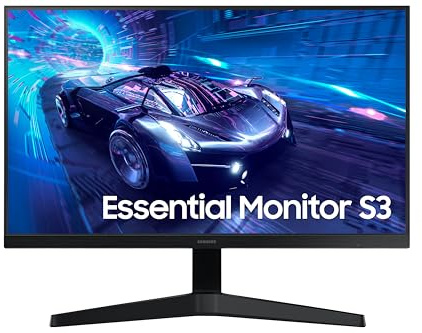
Samsung LS24F330EAUXXU 24" Full HD 100Hz Monitor - 1920x1080p, VGA, HDMI, Eye Saver Mode, Game Mode
Wide Viewing Angle - Experience sharp and vivid visuals from different angles.
£ 68.81
free delivery
To the offer

Dell 24 Monitor - SE2425HM, Full HD (1920x1080), 100Hz, IPS, 5ms, VESA (100x100mm), HDMI, VGA, 3 Year Warranty, Black
23.8" FULL HD DISPLAY – 1920 x 1080 resolution in 16:9 format with 100Hz refresh rate and IPS technology for vibrant colours and wide 178° viewing angles.
£ 95.00
free delivery
To the offer
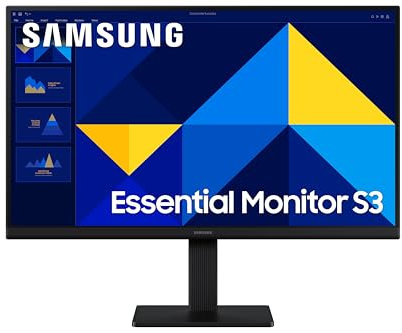
Samsung LS27D300GAUXXU 27" FullHD IPS Monitor - 1920x1080p, VGA, HDMI, Eye Saver Mode
IPS Panel - Colours remain bright and clear across the screen, even when you change angles 100Hz Refresh Rate - Stay in the action when playing games, watching videos, or working on creative projects with reduced lag and motion blur Eye Saver Mode & Less Screen Flickering - Protect your vision and stay comfortable, even during long sessions Super slim design with ultra-thin border bezels, this monitor enhances any setup with a sleek, modern look Game Mode - Gain a competitive edge with optimizable game settings
£ 94.00
free delivery
To the offer

PHILIPS 24E1N1100A 23.8 inch FHD Monitor 120Hz, IPS Panel, 1ms MPRT, Speakers (1920x1080 HDMI 1x 1.4) Black
100Hz refresh rates for ultra-smooth images IPS LED wide view technology for image and color accuracy 1ms (MPRT) fast response for crisp image and smooth gameplay LowBlue mode and Flicker-free easy-on-the eyes viewing Cable management reduces cable clutter for neat workspace
£ 74.97
free delivery
To the offer

PHILIPS 27E1N1100A 27 inch FHD Monitor 120Hz, IPS Panel, 4ms GtG, Adaptive Sync, Speakers, (1920x1080 HDMI 1x 1.4) Black
Built-in stereo speakers for multimedia HDMI ensures universal digital connectivity LowBlue mode and Flicker-free easy-on-the eyes viewing Cable management reduces cable clutter for neat workspace EasySelect menu toggle key for quick on-screen menu access
£ 94.97
free delivery
To the offer

AOC 27B3HA2 - 27 Inch FHD Monitor, 100Hz, IPS, 1ms, FlickerFree, Speakers, 3 sided Frameless, LowBlue Light (1920 x 1080, 250 cd/m2, HDMI 2.0 / DP 1.4)
Flicker Free and Low Blue Light technology reduce eye fatigue while increasing visual comfort; Adaptive image synchronization ensures streak-free images Viewing angle stable IPS panel, 2x 2 watt speakers, matt display, headphone out, slim frame, compatible with VESA mount 100x100, removable stand, cannot be raised Brightness/contrast: 250 cd/m2 1,300:1, connections: 1x D-Sub, 1x HDMI 1.4, 4 ms GtG response time Manufacturer's warranty: 3 years The warranty conditions can be found under "Further technical information".
£ 89.00
free delivery
To the offer

AOC 22B2H - 22 inch FHD Monitor, 75Hz, VA, 7ms Frameless design, Tilt, lowBlue Mode, Flicker Free (1920 x 1080 @ 75Hz, HDMI/VGA)
Flickerfree Lowblue Light Frameless VESA Wallmount
£ 69.97
free delivery
To the offer
ASUS VY249HGR Eye Care Gaming Monitor – 24 inch FHD (1920x1080), IPS, 120Hz OC, SmoothMotion, 1ms MPRT, Adaptive Sync, Eye Care Plus, Blue Light Filter, Flicker Free, antibacterial treatment
ASUS VY249HGR Eye Care Gaming monitor is designed with your health in mind.
£ 68.96
free delivery
To the offer
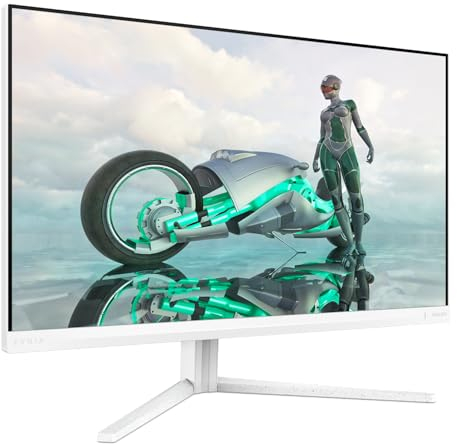
PHILIPS Evnia 27M2N3201A - 27 inch Full HD gaming monitor, IPS, HDR10, 180 Hz, 0.5 ms, FreeSync Prem, G-Sync Comp, Height Adjust, HDR10 (1920x1080, 2x HDMI, DisplayPort) White
68.6 cm (27") , 1920 x 1080 pixels Full HD ,16:9 180 Hz ,0.31125 x 0.31125 mm ,30 - 200 kHz , 48 - 180 Hz 100 x 100 mm , Kensington Simplified Chinese, Traditional Chinese, Czech, German, Dutch, English, Spanish, Finnish, French, Greek, Hungarian, Italian, Japanese, Korean, Polish, Portuguese, Russian, Swedish, Turkish, Ukrainian Mac OS X Windows 11/10
£ 139.00
free delivery
To the offer

Philips Evnia 24M2N3200NF - 24 inch Full HD gaming monitor, 144 Hz, 4 ms, FreeSync, G-Sync comp. (1920x1080, HDMI 2.0, DisplayPort 1.4) black
Fast IPS Gaming monitor 24M2N3200NF Full HD gaming monitor Synchronizes the display's refresh rate with the graphics card to eliminate screen tearing and stuttering.
£ 74.94
free delivery
To the offer
9% discount

AOC 24B3HA2 24 inch FHD Monitor 120Hz, IPS Panel, 4ms GtG, , Speakers, (1920x1080 HDMI 1x 1.4 ) Black
FHD resolution for crisp visuals IPS panel for wide viewing angles Ultra-narrow border for sleek design AOC branding for product trust
£ 74.97
£ 82.46
To the offer

KOORUI E2412F 24 Inch FHD Monitor, Gaming 100Hz, Eye Care, HDMI, VGA | VA Computer Monitors, 1080P Pc Screen, 5ms, VESA 100x100mm, No built-in speakers
【Visual Enjoyment】The pc monitor with a three-sided ultra-thin bezel delivers stunning visuals.
£ 64.99
free delivery
To the offer